<?xml version="1.0" encoding="utf-8"?><feed xmlns="http://www.w3.org/2005/Atom" ><generator uri="https://jekyllrb.com/" version="4.3.4">Jekyll</generator><link href="https://fravaccaro.com/feed.xml" rel="self" type="application/atom+xml" /><link href="https://fravaccaro.com/" rel="alternate" type="text/html" /><updated>2026-05-31T00:16:13+00:00</updated><id>https://fravaccaro.com/feed.xml</id><title type="html">fra</title><subtitle>just mix life-long passion for everything IT, add genuine curiosity and season it with love for facing challenges and finding a way around them.
</subtitle><author><name>fravaccaro</name></author><entry><title type="html">Sailfish OS: how to display more content</title><link href="https://fravaccaro.com/sailfish-os-how-to-display-more-content" rel="alternate" type="text/html" title="Sailfish OS: how to display more content" /><published>2017-03-08T09:07:06+00:00</published><updated>2017-03-08T09:07:06+00:00</updated><id>https://fravaccaro.com/sailfish-os-how-to-display-more-content</id><content type="html" xml:base="https://fravaccaro.com/sailfish-os-how-to-display-more-content"><![CDATA[<p>Some people prefer to have a more content-packed screen to have as much information as possible at a glance. On Android devices, this can be obtained by fiddling with DPI, i.e. the amount of dots per inch, while on Sailfish OS the device pixel ratio (DPR) is used for the same purpose - more on this <a href="http://stackoverflow.com/a/21413366">here</a>.</p>

<h2 id="check-the-dpr">Check the DPR</h2>

<p>The DPR value is stored in a dconf key. To read the value open the terminal and type, as regular user: <code class="language-plaintext highlighter-rouge">dconf read /desktop/sailfish/silica/theme_pixel_ratio</code> On a Jolla C, this will return a value of 1.25.</p>

<h2 id="custom-value">Custom value</h2>

<p>Empirically, a lower number would give more space to be filled by content, at the expense of a smaller font (although this can be tuned from the Settings). To edit the value type, as regular user: <code class="language-plaintext highlighter-rouge">dconf write /desktop/sailfish/silica/theme_pixel_ratio VALUE</code> then refresh the homescreen.</p>

<h3 id="dpr-110">DPR 1.10</h3>

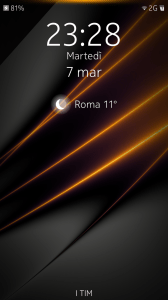
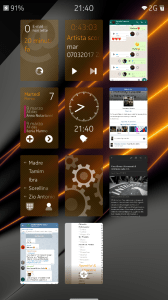
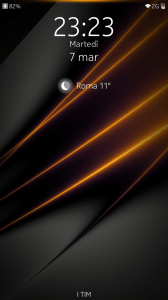
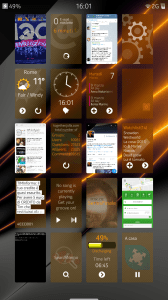
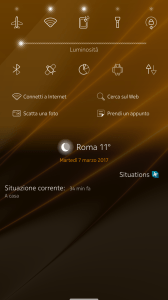
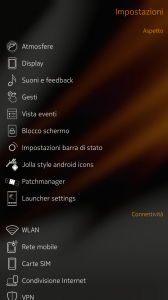
<p>Type, as regular user: <code class="language-plaintext highlighter-rouge">dconf write /desktop/sailfish/silica/theme_pixel_ratio 1.10</code> then refresh the homescreen. <a href="https://fravaccaro.wordpress.com/2017/03/08/sailfish-os-how-to-display-more-content/schermata_20170307_001/#main"><img src="/assets/posts/2017/03/sailfish-os-how-to-display-more-content-schermata_20170307_001.png" alt="" /> </a><img src="/assets/posts/2017/03/sailfish-os-how-to-display-more-content-schermata_20170307_011.png" alt="" /> <img src="/assets/posts/2017/03/sailfish-os-how-to-display-more-content-schermata_20170307_010.png" alt="" /> <a href="https://fravaccaro.wordpress.com/2017/03/08/sailfish-os-how-to-display-more-content/schermata_20170307_002/#main"><img src="/assets/posts/2017/03/sailfish-os-how-to-display-more-content-schermata_20170307_002.png" alt="" /></a></p>

<h3 id="dpr-090">DPR 0.90</h3>

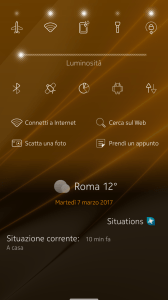
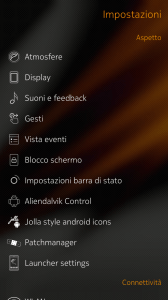
<p>Type, as regular user: <code class="language-plaintext highlighter-rouge">dconf write /desktop/sailfish/silica/theme_pixel_ratio 0.90</code> then refresh the homescreen. <a href="https://fravaccaro.wordpress.com/2017/03/08/sailfish-os-how-to-display-more-content/schermata_20170307_012/#main"><img src="/assets/posts/2017/03/sailfish-os-how-to-display-more-content-schermata_20170307_012.png" alt="" /> </a><a href="https://fravaccaro.wordpress.com/2017/03/08/sailfish-os-how-to-display-more-content/schermata_20170307_005/#main"><img src="/assets/posts/2017/03/sailfish-os-how-to-display-more-content-schermata_20170307_005.png" alt="" /> </a><a href="https://fravaccaro.wordpress.com/2017/03/08/sailfish-os-how-to-display-more-content/schermata_20170307_013/#main"><img src="/assets/posts/2017/03/sailfish-os-how-to-display-more-content-schermata_20170307_013.png" alt="" /> </a><a href="https://fravaccaro.wordpress.com/2017/03/08/sailfish-os-how-to-display-more-content/schermata_20170307_008/#main"><img src="/assets/posts/2017/03/sailfish-os-how-to-display-more-content-schermata_20170307_008.png" alt="" /></a></p>

<h2 id="reset-the-dpr-to-the-default-value">Reset the DPR to the default value</h2>

<p>Type, as regular user: <code class="language-plaintext highlighter-rouge">dconf reset /desktop/sailfish/silica/theme_pixel_ratio</code> then refresh the homescreen.</p>

<h2 id="tablet-ui">Tablet UI</h2>

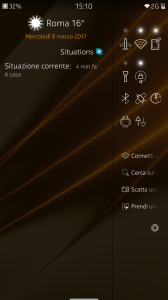
<p>With smaller DPR values, it may make sense to enable the quick settings sidebar like seen on the Jolla Tablet. Open, as root, the file: <code class="language-plaintext highlighter-rouge">/usr/share/lipstick-jolla-home-qt5/main/Desktop.qml</code> locate the line: <code class="language-plaintext highlighter-rouge">property bool showEventsViewSidebar: Screen.sizeCategory &gt;= Screen.Large</code> and change it as following: <code class="language-plaintext highlighter-rouge">property bool showEventsViewSidebar: Screen.sizeCategory &gt;= Screen.Small</code> then refresh the homescreen. <a href="https://fravaccaro.wordpress.com/2017/03/08/sailfish-os-how-to-display-more-content/schermata_20170308_003/#main"><img src="/assets/posts/2017/03/sailfish-os-how-to-display-more-content-schermata_20170308_003.png" alt="" /></a></p>

<h2 id="alien-dalvik">Alien Dalvik</h2>

<p>Android apps will follow a standard DPI setting. To tune it open, as root, the file: <code class="language-plaintext highlighter-rouge">/opt/alien/system/build.prop</code> then edit the following line: <code class="language-plaintext highlighter-rouge">ro.sf.lcd_density=VALUE</code> Even here, a lower number would give more space to the content. Common values are 240, 280, 300, 320. Restart the Android environment to apply the changes.</p>

<h2 id="wrap-up">Wrap-up</h2>

<p>I may work on some simple UI to edit the DPR value, but my programming skiils are really limited, so feel free to use the infos from this post to create your app/patch, considering a link to this page if it was useful.</p>

<h2 id="update">Update</h2>

<p>A preliminary package has been uploaded <a href="https://openrepos.net/content/fravaccaro/ui-themer">here</a>.</p>]]></content><author><name>fravaccaro</name></author><category term="DPR" /><category term="guide" /><category term="PPI" /><category term="Sailfish OS" /><summary type="html"><![CDATA[Some people prefer to have a more content-packed screen to have as much information as possible at a glance. On Android devices, this can be obtained by fiddling with DPI, i.e. the amount of dots per inch, while on Sailfish OS the device pixel ratio (DPR) is used for the same purpose - more on this here.]]></summary></entry><entry><title type="html">Sailfish OS: a new Events view concept</title><link href="https://fravaccaro.com/sailfish-os-a-new-events-view-concept" rel="alternate" type="text/html" title="Sailfish OS: a new Events view concept" /><published>2017-03-01T19:17:20+00:00</published><updated>2017-03-01T19:17:20+00:00</updated><id>https://fravaccaro.com/sailfish-os-a-new-events-view-concept</id><content type="html" xml:base="https://fravaccaro.com/sailfish-os-a-new-events-view-concept"><![CDATA[<p>I do love the <em>MeeGo-ish</em> Sailfish OS 2.x UI for a very simple reason: it brings you, <em>straight in your face</em> , two main aspects of modern smartphones, usually hidden in other OS’: multitasking and notifications. The main flaw is that most of the time they act like blank canvas and I have no way to retrieve my recent activities on the smartphone. Should it change?</p>

<h2 id="sailfish-os-22">Sailfish OS 2.2</h2>

<p>In this post I will focus mainly on the Events view and notifications - which in my humble opinion need the more love - but I will also suggest a way to make the multitasking view more useful than it is today. Surprise surprise, I even included some <em>superb</em> first grade-level sketches to show what my idea is.</p>

<h2 id="the-home-view">The Home view</h2>

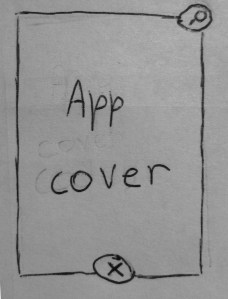
<p><a href="https://fravaccaro.wordpress.com/2017/03/01/sailfish-os-a-new-events-view-concept/dscn6005/#main"><img src="/assets/posts/2017/03/sailfish-os-a-new-events-view-concept-dscn6005.jpg" alt="Pin app cover" /></a>A simple addition would dramatically improve the usefulness of the multitasking view: adding pinned apps. Since in Sailfish OS 2.x there’s no longer the 9 covers view limit of the 1.x iteration, having apps pinned at startup would both help to interact with the most used ones (even because of muscle memory) and partially solve the current lack of an autostart option (at least in Store-approved apps).</p>

<h2 id="the-events-view">The Events view</h2>

<p>It would not be heretic to say that nowadays the Events view is largely underused; the Twitter feed shows only the last 10 tweets and changes in the Facebook APIs prevent a future implementation of a feed (as it was in MeeGo Harmattan). So why not taking the whole feed away (albeit it could be implemented in a different way, more on this later) and focusing on notifications?</p>

<h3 id="a-notification-hub">A notification hub</h3>

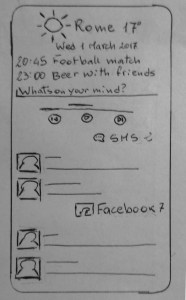
<p><a href="https://fravaccaro.wordpress.com/2017/03/01/sailfish-os-a-new-events-view-concept/dscn6006/#main"><img src="/assets/posts/2017/03/sailfish-os-a-new-events-view-concept-dscn6006.jpg" alt="Events view" /></a>The main Events view screen would show, from top to bottom:</p>

<ul>
  <li>The weather widget.</li>
  <li>A larger-than-today calendar widget.</li>
  <li>A <em>What’s on your mind?</em> form to post across different social networks.</li>
  <li>Music player controls for the running MPRIS-enabled player (if any).</li>
  <li>Notifications.</li>
</ul>

<p>The main difference with the current behaviour would be than, once selected, the notification would not go away, but change status as read and stay to form a notification history <em>à la Blackberry 10</em>. Also, if the Events view is accessed from an app with the left swipe, swiping away from the events would bring the user back to the previous active app. To interact with the new system, a pulley menu would offer (from top to bottom):</p>

<ul>
  <li>Clear all notifications</li>
  <li>Mark all as read</li>
  <li>Categories</li>
  <li>Show unread only/all</li>
</ul>

<p><em>Note: ‘Clear’ is used to actually delete the notification(s) from the list.</em></p>

<h4 id="notification-item">Notification item</h4>

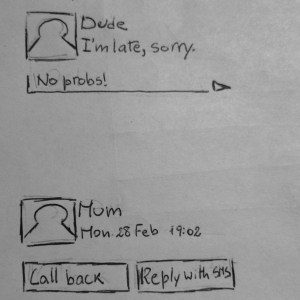
<p><a href="https://fravaccaro.wordpress.com/2017/03/01/sailfish-os-a-new-events-view-concept/dscn6004/#main"><img src="/assets/posts/2017/03/sailfish-os-a-new-events-view-concept-dscn6004.jpg" alt="Expanded notifications" /></a>Interaction with the notification item would occur in three ways:</p>

<ul>
  <li>Tap: to open the app.</li>
  <li>Long-tap: to show a contextual menu with <em>Mark as read/unread</em> and <em>Clear notification</em> options.</li>
  <li>Swipe up/down with two fingers: to expand/collapse the notification. It’s an action already in use in Android, so it would not feel totally new to an user. Furthermore, the expanded view would provide a max. 2 quick actions, ideally including inline replies in case of a messaging app. These are also present in Android, so an update to the Alien Dalvik would expose this feature even for Android apps (Option B: to improve one-hand usability, quick actions can be placed in the long-tap menu).</li>
</ul>

<p><em>Note: even the weather and the calendar widgets may profit from the two fingers-to expand gesture.</em></p>

<h4 id="category-item">Category item</h4>

<p>Interaction with the category item would occur in two ways:</p>

<ul>
  <li>Tap: to open the category page.</li>
  <li>Long-tap: to show a contextual menu with <em>Mark category as read/unread</em> , <em>Change priority</em> and <em>Clear category notifications</em> options.</li>
</ul>

<p>To avoid clutter, only the first 4-5 notifications per category could be displayed, with a <em>more</em> button right below - as it happens with the current implementation.</p>

<h4 id="category-view">Category view</h4>

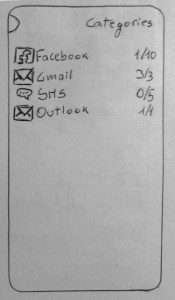
<p><a href="https://fravaccaro.wordpress.com/2017/03/01/sailfish-os-a-new-events-view-concept/dscn5999/#main"><img src="/assets/posts/2017/03/sailfish-os-a-new-events-view-concept-dscn5999.jpg" alt="Category view" /></a>Selecting this option from the pulley menu would open an attached page with a simple list of all the notification categories (well, the apps those notifications are from) alongside an individual indicator with a unread/total count.</p>

<h4 id="category-page">Category page</h4>

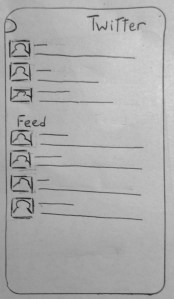
<p><a href="https://fravaccaro.wordpress.com/2017/03/01/sailfish-os-a-new-events-view-concept/dscn5998/#main"><img src="/assets/posts/2017/03/sailfish-os-a-new-events-view-concept-dscn5998.jpg" alt="Category page" /></a>This would list all the notifications from the given app. Interaction with the notification items would be the same as in the main Events view. The pulley menu would offer (from top to bottom):</p>

<ul>
  <li>Clear category notifications</li>
  <li>Change priority</li>
  <li>Mark category as read/unread</li>
</ul>

<p>Below the notifications, an optional feed could be displayed (as with Twitter).</p>

<h2 id="priority">Priority</h2>

<p>To better sort all the apps the notifications are from, I would introduce a priority system:</p>

<ul>
  <li>High: notifications from this category trigger a sound/vibration and are displayed above all the other notifications in the Events view. They have a notification icon in the lockscreen.</li>
  <li>Normal: notifications from this category trigger a sound/vibration and are displayed below all the important notifications in the Events view. They don’t have a notification icon in the lockscreen.</li>
  <li>Low: notifications from this category don’t trigger a sound/vibration and are displayed below all the normal notifications in the Events view. They don’t have a notification icon in the lockscreen.</li>
</ul>

<h2 id="notification-banner">Notification banner</h2>

<p><a href="https://fravaccaro.wordpress.com/2017/03/01/sailfish-os-a-new-events-view-concept/dscn6002/#main"><img src="/assets/posts/2017/03/sailfish-os-a-new-events-view-concept-dscn6002.jpg" alt="Notification banner" /></a>A bigger notification banner would fit the entire screen width and offer the following interactions:</p>

<ul>
  <li>Tap: to open the app.</li>
  <li>Swipe left/right: to dismiss the notification.</li>
  <li>Swipe up/down with two fingers: to expand/collapse notification. Furthermore, the expanded view would provide a max. 2 quick actions, ideally including inline replies in case of a messaging app Option B: to improve one-hand usability, a one-finger swipe can be used).</li>
</ul>

<h2 id="what-about-the-controls">What about the controls?</h2>

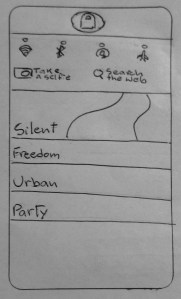
<p><a href="https://fravaccaro.wordpress.com/2017/03/01/sailfish-os-a-new-events-view-concept/dscn6001/#main"><img src="/assets/posts/2017/03/sailfish-os-a-new-events-view-concept-dscn6001.jpg" alt="Controls/Ambiences drop-down menu" /></a>With the pulley menu taking the upper-part of the Events view, toggles and quick actions would be moved to the Ambience drop-down menu. This would make them more accessible throughout the whole system. The new drop-down would show (from top to bottom):</p>

<ul>
  <li>A narrower lock button.</li>
  <li>Toggles and quick actions.</li>
  <li>Favourite ambiences.</li>
</ul>

<h2 id="wrap-up">Wrap-up</h2>

<p>I tried to be as comprehensive as possible. I’m not an UI designer myself and of course I don’t want to criticize the amazing work designers have been doing on the platform, but I wanted to show my thoughts on the areas which may be improved. Comments and suggestions are welcome. <a href="https://cdn-blog.jolla.com/wp-content/uploads/2015/09/events.jpg">Cover image</a></p>]]></content><author><name>fravaccaro</name></author><category term="concept" /><category term="Events view" /><category term="notifications" /><category term="Pointless thoughts" /><category term="Sailfish OS" /><category term="UI" /><category term="UX" /><summary type="html"><![CDATA[I do love the MeeGo-ish Sailfish OS 2.x UI for a very simple reason: it brings you, straight in your face , two main aspects of modern smartphones, usually hidden in other OS’: multitasking and notifications. The main flaw is that most of the time they act like blank canvas and I have no way to retrieve my recent activities on the smartphone. Should it change?]]></summary></entry><entry><title type="html">A free cloud - how to configure Nextcloud</title><link href="https://fravaccaro.com/a-free-cloud-how-to-configure-nextcloud" rel="alternate" type="text/html" title="A free cloud - how to configure Nextcloud" /><published>2016-07-09T17:36:29+00:00</published><updated>2016-07-09T17:36:29+00:00</updated><id>https://fravaccaro.com/a-free-cloud-how-to-configure-nextcloud</id><content type="html" xml:base="https://fravaccaro.com/a-free-cloud-how-to-configure-nextcloud"><![CDATA[<p>As some of you may know, I’m a quite open source-oriented guy. I run different flavors of GNU/Linux on my machines (currently the amazing Arch-based Antergos), I used to be an avid N9 (MeeGo) user and a current Jolla (Sailfish OS) one. I’m not that kind of man who bashes everything is closed-sourced though; I look at different solutions and choose the best one. And a lot of times the best one is open source. Why am I writing this preface? Because open source fans are usually pictured as blatant long-bearded programmers or (pseudo-)philosophers with Steve Ballmer’s face printed on their toilet paper. And although the Ballmer-paper is a brilliant idea, I’m not a programmer, nor a philosopher and I hope blatant neither. And my beard grows in patches. I’m just a guy willing to learn new stuff and who’s becoming more conscious where his data go. All the major platforms (both mobile and desktop) work great, but are they worth my privacy and my personal information as a price to pay? In one word, <em>nope</em>. This is one of the reasons I am approaching more to open solutions instead of closed ones and why I am writing this post – post conceived to show that even a not so IT-skilled guy as me can set up a small personal cloud to store his data. But, all in all, what exactly is the so-called <em>cloud</em>?</p>

<h2 id="the-cloud">The cloud</h2>

<p>In a nutshell, the <em>cloud computing</em> lets you archive your contacts, calendars, files, pictures and so on on a company server to reach them no matter what device you are using. Easy, isn’t it? But here it comes the first caveat. Yes, because all your data are literally on someone else computer and under the law of the countries where those servers are located in and this is a matter – as the <em>NSA affair</em> showed – to not be understated. People may say “ <em>Oh if you have nothing to hide you should not be afraid</em> ”. <strong>Bullshit</strong>. Since you have nothing to hide, would it be okay for you if policemen came from time to time at your place to rummage into your things? It would bother me. So why should I be okay to let a foreign (but neither my home one would be fine) government rummage into my data? Even if data were not at the mercy of foreign governments still, accepting the <em>End User License Agreement</em> (EULA), we grant to those companies the right to do whatever they like with our information. Have you noticed that if you book a flight and you receive the ticket into your Gmail, the relative event is added to Google Calendar within minutes? This is because Google analyzes the content of your emails (but also your files, photos, etc.) to give you a - yes - convenient service, but also to enrich the profile of you they have and yield it to their trading partners. Sure, it’s handy and straightforward, but am I the only one to find it a little bit <em>creepy</em>?</p>

<h3 id="is-an-alternative-solution-possible">Is an alternative solution possible?</h3>

<p>Short answer: <em>Yes it is</em>. All we need is a low-powered board (as it’s going to be on all the time). Check. A way to manage and route data from the server to our devices. Check. We are going to use that mighty little board called <strong>Raspberry Pi</strong> and an open source application called <strong>Nextcloud</strong> , which lets you set up your own cloud at home and access to it remotely as it was one of the solutions offered by Google, Microsoft or Apple. Oh, also some time, patience and basic Linux knowledge would not hurt.</p>

<h2 id="why-the-pi">Why the Pi?</h2>

<p>Why is the Raspberry Pi a perfect choice for this project? Because it’s a fairly cheap piece of hardware with endless community support, guides and posts written about it. It’s not the most powerful hardware out there (although it’s improved with latter generations), but this small-sized server we are going to make is intended for personal use, so I suppose we can live with no top-notch performance.</p>

<h2 id="why-nextcloud">Why Nextcloud?</h2>

<p>Albeit the name may sound new to you, it’s a software which has solid roots into ownCloud, an open source and mature cloud solution aimed to both private and enterprise users. Recently one of its co-founders, Frank Karlitschek, left ownCloud and forked it into this new project, stating some mistakes where quite hard to solve without a reboot. I’m not going to discuss his claims here, I chose to use Nextcloud because:</p>

<ol>
  <li>It more likely will be the project which inherits and carries on the ownCloud legacy, as almost all the core developers switched to Nextcloud.</li>
  <li>Few guides are available on the net and they usually treat it as an ownCloud update to be done, whereas in my guide I’m going to describe an installation from the scratch.</li>
</ol>

<p>So, without further ado, let’s dive into it.</p>

<h2 id="index">Index</h2>

<ol>
  <li>What we need</li>
  <li>Install the OS and first configuration</li>
  <li>Configure the DNS</li>
  <li>Create and install the cert</li>
  <li>Configure the router</li>
  <li>Configure Nextcloud</li>
</ol>

<h2 id="what-we-need">What we need</h2>

<ul>
  <li>A Raspberry Pi.</li>
  <li>An SD card (or microSD, depending on your Raspberry model), minimum 16 GB and class 10 recommended.</li>
  <li>A router with port mapping capabilities (check on your router user manual).</li>
  <li>Of course, a monitor and a keyboard for the first configuration.</li>
</ul>

<h2 id="install-the-os-and-first-configuration">Install the OS and first configuration</h2>

<p>We are going to use a bare-bone Raspbian-derived distribution called DietPi. Its strengths are the ease of use and configuration and the sleekness; it’s particularly suitable as a server distro as it offers no graphical interface nor any blob at all by default.</p>

<ol>
  <li>Download the image from <a href="http://dietpi.com/">here</a> and unzip it.</li>
  <li>Insert the SD card into your PC.</li>
  <li>(On Windows) Use <a href="https://sourceforge.net/projects/win32diskimager/">Win32DiskImager</a> to burn the image onto the SD or (on Linux) open a terminal and type: # dd if=FILEPATH/FILE.img of=/dev/sdX Where X is the letter associated with the SD. <em>Note: you should use sdX, not sdX1, sdX2, etc.</em></li>
</ol>

<hr />

<h3 id="optional-configure-the-wifi">(Optional) Configure the Wifi</h3>

<ul>
  <li>Open the file <code class="language-plaintext highlighter-rouge">dietpi.txt</code> on the SD.</li>
  <li>Set <code class="language-plaintext highlighter-rouge">Wifi_Enabled=1</code></li>
  <li>Set your network’s SSID in <code class="language-plaintext highlighter-rouge">Wifi_SSID=SSIDWifi</code> and password in <code class="language-plaintext highlighter-rouge">Wifi_KEY=PasswordWifi</code></li>
</ul>

<hr />

<ol>
  <li>Insert the SD into the Pi, connect the display and the keyboard and power it on; the DietPi wizard will lead you step-by-step throughout the installation process.</li>
  <li>In <code class="language-plaintext highlighter-rouge">Software Optimized</code> select <code class="language-plaintext highlighter-rouge">Nextcloud</code> and <code class="language-plaintext highlighter-rouge">CertBot</code>.</li>
  <li>Go back and select <code class="language-plaintext highlighter-rouge">Apache2</code> under <code class="language-plaintext highlighter-rouge">Webserver Preference</code>.</li>
  <li>Select <code class="language-plaintext highlighter-rouge">DietPi-Config &gt; Network Options: Adapters</code>, then <code class="language-plaintext highlighter-rouge">Ethernet</code> or <code class="language-plaintext highlighter-rouge">WiFi</code> (depending from your connection).</li>
  <li>In <code class="language-plaintext highlighter-rouge">Change Mode</code> select <code class="language-plaintext highlighter-rouge">STATIC</code> and in <code class="language-plaintext highlighter-rouge">IP address</code> type the IP address of your choice for your Pi, e.g. <code class="language-plaintext highlighter-rouge">192.168.1.99</code>. Remember to check and edit the Gateway accordingly with your configuration (usually <code class="language-plaintext highlighter-rouge">192.168.1.1</code> or <code class="language-plaintext highlighter-rouge">192.168.0.1</code>).</li>
  <li>Go back and select <code class="language-plaintext highlighter-rouge">Go</code> to start installation. When completed, the Pi will reboot.</li>
</ol>

<p>Once done, you may want to change your password. Type: <code class="language-plaintext highlighter-rouge"># passwd</code></p>

<hr />

<h3 id="optional-autologin">(Optional) Autologin</h3>

<p>Since your Pi is going to work as an <em>headless</em> server, it may be useful if it could automatically login whether a spontaneous reboot occurs (as a sudden change in voltage, for instance).</p>

<ul>
  <li>Type: <code class="language-plaintext highlighter-rouge"># nano /etc/systemd/system/getty.target.wants/getty@tty1.service</code></li>
  <li>Edit the line <code class="language-plaintext highlighter-rouge">"ExecStart="</code> as follows: <code class="language-plaintext highlighter-rouge">ExecStart=-/sbin/agetty -a root %I $TERM</code></li>
  <li>Save with <code class="language-plaintext highlighter-rouge">CTRL+X</code> and quit.</li>
</ul>

<p><em>Note: use this setting<strong>ONLY</strong> if you are sure you are the only one who can physically access to your Pi.</em></p>

<hr />

<p>Now you can turn off the Pi, move it wherever you like and use it via SSH from your main PC, using <a href="http://www.putty.org/">Putty</a> (on Windows) or <code class="language-plaintext highlighter-rouge">ssh root@192.168.1.99</code> from your Linux terminal.</p>

<h2 id="configure-the-dns">Configure the DNS</h2>

<p>Connecting to your server via your modem IP address is awkward, as it changes every now and then - that’s why we are going to set up a dynamic DNS service, which gives you an human-readable address and takes care of linking it with your modem IP.</p>

<h3 id="freedns">FreeDNS</h3>

<ol>
  <li>Register on <code class="language-plaintext highlighter-rouge">http://freedns.afraid.org/</code></li>
  <li>Login. From the menu on the left select <code class="language-plaintext highlighter-rouge">Dynamic DNS</code>. At the bottom of the page, create a new record - let’s use <code class="language-plaintext highlighter-rouge">mypi.homenet.org</code> as a reference.</li>
  <li>Click on <code class="language-plaintext highlighter-rouge">Direct URL </code><a href="https://fravaccaro.wordpress.com/freedns/"><img src="/assets/posts/2016/07/a-free-cloud-how-to-configure-nextcloud-freedns.png" alt="FreeDNS" /></a></li>
  <li>The address bar will display an URL of this kind: <code class="language-plaintext highlighter-rouge">http://freedns.afraid.org/dynamic/update.php?[alphanumeric code]</code></li>
  <li>Take note of the alphanumeric code.</li>
</ol>

<h3 id="inadyn">Inadyn</h3>

<ol>
  <li>On the Pi, install inadyn by typing: <code class="language-plaintext highlighter-rouge"># apt-get install inadyn</code></li>
  <li>Backup the default configuration: <code class="language-plaintext highlighter-rouge"># mv /etc/inadyn.conf /etc/inadyn.conf.bk</code></li>
  <li>Create a new one: <code class="language-plaintext highlighter-rouge"># touch /etc/inadyn.conf</code></li>
  <li>Then edit it: <code class="language-plaintext highlighter-rouge"># nano /etc/inadyn.conf</code></li>
  <li>Type: <code class="language-plaintext highlighter-rouge">--username yourfreednsusername --password yourfreednspassword --update_period 3600 --forced_update_period 14400 --alias mypi.homenet.org,freednsalphanumericcode --background --dyndns_system default@freedns.afraid.org --syslog</code></li>
  <li>Save and quit.</li>
  <li>Set inadyn to start on boot: <code class="language-plaintext highlighter-rouge"># crontab -e</code></li>
  <li>Type: <code class="language-plaintext highlighter-rouge">@reboot /usr/sbin/inadyn</code></li>
  <li>Save and quit.</li>
</ol>

<h2 id="create-and-install-the-cert">Create and install the cert</h2>

<ol>
  <li>Create a new SSL certificate by typing: <code class="language-plaintext highlighter-rouge"># dietpi-letsencrypt</code></li>
  <li>In the newly opened window insert: In Domain: <code class="language-plaintext highlighter-rouge">mypi.homenet.org</code> In Email: <code class="language-plaintext highlighter-rouge">your email</code> In Redirect: <code class="language-plaintext highlighter-rouge">Enabled</code> In Auto Renew: <code class="language-plaintext highlighter-rouge">Enabled</code> In Key Size: <code class="language-plaintext highlighter-rouge">2048</code></li>
  <li>Then apply your settings.</li>
</ol>

<p><em>Note: it may take some time, if you see it stuck on ‘Installing Python packages’ for a while don’t panic and let it finish.</em></p>

<h2 id="configure-the-router">Configure the router</h2>

<ol>
  <li>Open a browser and login into your router (usually the address is something like <code class="language-plaintext highlighter-rouge">192.168.1.1</code> or <code class="language-plaintext highlighter-rouge">192.168.0.1</code>, but you may want to check it on the bottom/rear tag on the modem or on its user manual).</li>
  <li>Look for an option called <em>Port mapping</em> (or similar).</li>
  <li>Open the ports 80 and 443 to your Pi IP address. <a href="https://fravaccaro.wordpress.com/2016/07/09/a-free-cloud-how-to-configure-nextcloud/router_configuration/#main"><img src="/assets/posts/2016/07/a-free-cloud-how-to-configure-nextcloud-router_configuration.png" alt="Router configuration" /></a></li>

</ol>

<p>Now you should be able to access to your server from any browser using the URL <code class="language-plaintext highlighter-rouge">mypi.homenet.org</code></p>

<h2 id="configure-nextcloud">Configure Nextcloud</h2>

<ol>
  <li>On a browser type: <code class="language-plaintext highlighter-rouge">https://mypi.homenet.org/nextcloud</code></li>
  <li>Login by using: In User: <code class="language-plaintext highlighter-rouge">admin</code> In Password: your<code class="language-plaintext highlighter-rouge">dietpi</code></li>
  <li>Change your password from <code class="language-plaintext highlighter-rouge">Admin</code> in the top-right menu. From there you can also add your profile picture or customize other options.</li>
</ol>

<p>Once done, you can use your brand new Nextcloud! <em>Tip: you can create an user with the user name of your choice (and use those credentials to manage your cloud and login into apps) by using<code class="language-plaintext highlighter-rouge"> Users</code> via the top-right menu.</em></p>

<h3 id="set-up-your-own-language">Set up your own language</h3>

<p>You can switch to your own language by using <code class="language-plaintext highlighter-rouge">Admin</code> via the top-right menu.</p>

<h3 id="contacts-and-calendar">Contacts and Calendar</h3>

<table>
  <tbody>
    <tr>
      <td>You may need to manually activate the Contacts and Calendar apps by using <code class="language-plaintext highlighter-rouge">Applications</code> on the top-left menu. <em>That’s all folks!</em> Have fun using Nextcloud and regaining control over your own data.__ Sources [DietPi: Download DietPi image</td>
      <td>Getting started](http://dietpi.com/phpbb/viewtopic.php?f=8&amp;t=9), <a href="http://dietpi.com/phpbb/viewtopic.php?f=8&amp;t=10">DietPi: (Step by Step Guide) DietPi - Owncloud</a>, <a href="http://www.techjawab.com/2013/06/setup-dynamic-dns-dyndns-for-free-on.html">Techjawab: Setup Dynamic DNS / DynDNS for <em>FREE</em> on Raspberry Pi / Ubuntu </a>, <a href="http://dietpi.com/phpbb/viewtopic.php?f=8&amp;t=5&amp;p=3026#p3026">Details for ALL installation options</a></td>
    </tr>
  </tbody>
</table>]]></content><author><name>fravaccaro</name></author><category term="CertBot" /><category term="DietPi" /><category term="guide" /><category term="installation" /><category term="LAMP" /><category term="Letsencrypt" /><category term="Linux" /><category term="Nextcloud" /><category term="OwnCloud" /><category term="Raspberry Pi" /><summary type="html"><![CDATA[As some of you may know, I’m a quite open source-oriented guy. I run different flavors of GNU/Linux on my machines (currently the amazing Arch-based Antergos), I used to be an avid N9 (MeeGo) user and a current Jolla (Sailfish OS) one. I’m not that kind of man who bashes everything is closed-sourced though; I look at different solutions and choose the best one. And a lot of times the best one is open source. Why am I writing this preface? Because open source fans are usually pictured as blatant long-bearded programmers or (pseudo-)philosophers with Steve Ballmer’s face printed on their toilet paper. And although the Ballmer-paper is a brilliant idea, I’m not a programmer, nor a philosopher and I hope blatant neither. And my beard grows in patches. I’m just a guy willing to learn new stuff and who’s becoming more conscious where his data go. All the major platforms (both mobile and desktop) work great, but are they worth my privacy and my personal information as a price to pay? In one word, nope. This is one of the reasons I am approaching more to open solutions instead of closed ones and why I am writing this post – post conceived to show that even a not so IT-skilled guy as me can set up a small personal cloud to store his data. But, all in all, what exactly is the so-called cloud?]]></summary></entry><entry><title type="html">How could I have missed this?</title><link href="https://fravaccaro.com/how-could-i-have-missed-this" rel="alternate" type="text/html" title="How could I have missed this?" /><published>2016-07-08T22:03:14+00:00</published><updated>2016-07-08T22:03:14+00:00</updated><id>https://fravaccaro.com/how-could-i-have-missed-this</id><content type="html" xml:base="https://fravaccaro.com/how-could-i-have-missed-this"><![CDATA[<p>Wow. That’s just brilliant. https://open.spotify.com/album/6jc8wzAuoCh9bjBxc7nAU6 <a href="http://revolart.it/wp-content/uploads/2015/10/Hand-Cannot-Erase-Cover-Lasse-Hoile.jpg">Cover Source</a></p>]]></content><author><name>fravaccaro</name></author><category term="Hand. Cannot. Erase." /><category term="Scraps" /><category term="Steven Wilson" /><summary type="html"><![CDATA[Wow. That’s just brilliant. https://open.spotify.com/album/6jc8wzAuoCh9bjBxc7nAU6 Cover Source]]></summary></entry><entry><title type="html">Why the status bar has NOT to go</title><link href="https://fravaccaro.com/why-the-status-bar-has-not-to-go" rel="alternate" type="text/html" title="Why the status bar has NOT to go" /><published>2015-10-12T18:44:47+00:00</published><updated>2015-10-12T18:44:47+00:00</updated><id>https://fravaccaro.com/why-the-status-bar-has-not-to-go</id><content type="html" xml:base="https://fravaccaro.com/why-the-status-bar-has-not-to-go"><![CDATA[<p>The title clearly recalls <a href="http://jaakkoroppola.blogspot.it/2014/11/why-status-bar-has-to-go.html">this post</a> by Jaakko Roppola, Senior Designer at Jolla. Now, I’m a huge fan of him, I love his vision. I was lucky enough to have a brief conversation with him at the Jolla office in Tampere and I actually like his point of view in that post, but I’m also a fan of underdogs - otherwise I would not be here. I like to see the other side of the coin, so let’s see why in my humble opinion the status bar still has something to say.</p>

<h2 id="preface">Preface</h2>

<p>All in all, for some reason it looks like the status bar is die hard and those OS’ that tried to kill it failed (anybody said Windows Phone?) - it is, along with horizontal-scrolling homescreens (what a coincidence!), one of the few points that mobile OS’ have in common nowadays. Even on the new Sailfish OS 2.0 it shyly pops on both the home and the lock screens - and those 20 pixels of screen estate wasted have brought some rage among the Sailfish OS purists - so, at this point, I may put myself under the storm saying that it could still be useful even inside apps.</p>

<h2 id="status-bar-à-la-sailfish">Status bar à la Sailfish</h2>

<p>Let’s ride my sick fantasy for a moment and imagine to implement it in the current Sailfish OS. Ideally (and with not that much fantasy, actually) it can be placed right under the pulley menu indicator (some apps even use a persistent header which stays on top and doesn’t scroll with the content, so there’s already some space). But we want to take it further, right? So in those apps with no persistent header it would scroll with the content, to not waste precious screen real estate. This tiny bar would enable two interesting scenarios:</p>

<h3 id="double-the-gestures">Double the gestures</h3>

<p>Why should we be forced to use the ambience menu OR the swipe to close? As a reference, let’s take the MeeGo Harmattan (which UI/UX-wise is imho still among the best and it’s proven to work) implementation: <a href="https://fravaccaro.wordpress.com/2015/10/12/why-the-status-bar-has-not-to-go/attachment/2/#main"> <img src="/assets/posts/2015/10/why-the-status-bar-has-not-to-go-2.png" alt="Swipe down in MeeGo Harmattan" /> </a><a href="https://fravaccaro.wordpress.com/2015/10/12/why-the-status-bar-has-not-to-go/attachment/1/#main"><img src="/assets/posts/2015/10/why-the-status-bar-has-not-to-go-1.png" alt="Status bar in MeeGo Harmattan" /></a></p>

<ul>
  <li>Tap on the status bar reveals the menu.</li>
  <li>Swipe down closes the app or minimize it (as in MeeGo/Sailfish OS 1.x, depending on the user’s preference). A swipe from the top in the home screen may also quickly lock the phone (as in Sailfish OS 1.x - something that some users seem to miss).</li>
</ul>

<p>Pretty straightforward, isn’t it? But I do think that the second scenario may be even more interesting:</p>

<h3 id="cycle-between-running-apps"><strong>Cycle between running apps</strong></h3>

<p>What may this multitasking-focused OS lack? A quick switch between two (or more) apps currently open - something which Ubuntu Touch and even the new iOS (which is, by tradition, quite resistent to changes) have already. This, in some cases, would be faster than looking for the app itself in the “one swipe away” app tray and one action less than swipe to home+tap on cover. So, in Sailfish OS a flicker (defined as a swipe that starts inside the display) on the status bar would let users switch between the currently open apps. Aren’t you convinced yet? Let’s take as a reference, again, MeeGo Harmattan with the <strong>Cyclotron mod</strong> : http://www.youtube.com/watch?v=tXYu30kT5Rc I may sound silly, but bringing back the “evil” status bar would actually further enhance Sailfish OS multitasking. To me, this is quite cool, isn’t it?</p>

<h2 id="bottom-line">Bottom line</h2>

<p>This is the simpliest way I could come with, as I think gestures should be as coherent as possible throughout the interface - this excludes swipes from the left/right, top/bottom, corners, L swipes performing different actions. Thus said, do you think a quick switch between apps is worthy having that hideous bar back? Comments are warmly welcome, just please put aside for a moment the rage against the “damn” status bar and think with an open mind. Love. <a href="http://reviewjolla.blogspot.it/2015/10/why-status-bar-has-not-to-go.html">Appeared on Sailfish OS Reviews</a></p>]]></content><author><name>fravaccaro</name></author><category term="gestures" /><category term="Pointless thoughts" /><category term="Sailfish OS" /><category term="status bar" /><category term="UI" /><category term="UX" /><summary type="html"><![CDATA[The title clearly recalls this post by Jaakko Roppola, Senior Designer at Jolla. Now, I’m a huge fan of him, I love his vision. I was lucky enough to have a brief conversation with him at the Jolla office in Tampere and I actually like his point of view in that post, but I’m also a fan of underdogs - otherwise I would not be here. I like to see the other side of the coin, so let’s see why in my humble opinion the status bar still has something to say.]]></summary></entry><entry><title type="html">Interview with Heikki of @SituationsApp</title><link href="https://fravaccaro.com/interview-with-heikki-of-situationsapp" rel="alternate" type="text/html" title="Interview with Heikki of @SituationsApp" /><published>2015-05-28T09:54:43+00:00</published><updated>2015-05-28T09:54:43+00:00</updated><id>https://fravaccaro.com/interview-with-heikki-of-situationsapp</id><content type="html" xml:base="https://fravaccaro.com/interview-with-heikki-of-situationsapp"><![CDATA[<p>In a sunny and mild end-May afternoon I had the chance to meet, in Helsinki, Heikki Haveri, developer of Situations and partner, along with another former Nokia employee, Roope Tassberg, in the <a href="http://www.pastillilabs.com/home">Pastilli Labs</a> project. In a pretty <em>kahvila</em> of the city’s center, along with a cup of coffee, we had a long and pleasant chat, talking about the expectations and the present (and a dig into the past, as well) of Jolla and Situations. Tell us about Pastilli Labs: how did the project kick off? Who are the founders and the current team?</p>

<blockquote>
  <p>Pastilli Labs was founded by me and Roope when both of us left Nokia. In Nokia we had this project, Nokia Situations, originally meant to be part of some devices but it never happened, so it became an internal alpha and after a public beta on Beta Labs. Then we were transfered to Accenture and we asked the permission to take the idea and carry it on on our own. I’m the developer of the app, while Roope takes care of the business side, marketing, bureaucracy and so on. The first version was built in Qt on the original Symbian app, then it was ported to MeeGo. With the release 2 I tried to run Situations on as many platforms as possible, so the Android and – later – the Sailfish versions came out.</p>
</blockquote>

<p>What’s the idea behind Situations?</p>

<blockquote>
  <p>Originally it was built around context awareness. The idea is that you can program the phone automatically without you having to do stuff manually on it. There are many ways to approach that, but basically you can make the phone learn from what you do or set certain rules that it has to follow. At that time in Nokia there were projects who tried both of the approaches, but we chose the second one because I it’s easier to set up and more intuitive.</p>
</blockquote>

<p>How did you run into Jolla and why did you choose to support Sailfish OS? Do you think Jolla will be the next big thing in the mobile world?</p>

<blockquote>
  <p>Well, as former N9 user, I was keen to know what it was going to happen, because I really liked the MeeGo UI and I still think that Nokia did a mistake in ditching MeeGo for Windows Phone. Furthermore, as a Finn I was naturally curious of this new Finnish company entering in the mobile world. Surely they still have tough times ahead. Going mainstream is not easy at this point, but building a solid niche in the market would hopefully be a profitable way.</p>
</blockquote>

<p>What are the main upsides of developing apps for Sailfish OS? What are the opportunities of developing for such a young platform?</p>

<blockquote>
  <p>I like Qt, I do think that they make the developing process easier. I also like the hackability of the OS and of course the community, which is helpful in those areas where the documentation is weaker. The hugest opportunity for independent developers is visibility at start, which may turn to be in a more convenient position lately.</p>
</blockquote>

<p>What do you appreciate of the developing process? Considering also the SDK, how is it compared to other platforms?</p>

<blockquote>
  <p>Compared to other platforms it’s easier to set up and start working. The SDK is based on Qt Creator and I like the way the emulator works – it’s an interestingly and surprisingly good implementation.</p>
</blockquote>

<p>Whom would you advice to develop for Sailfish OS?</p>

<blockquote>
  <p>Of course a Linux background helps you. I would advice Sailfish to those who are familiar with Qt and QML. The Silica documentation is at a good level, but if you’re looking for some deeper hacking it may be more difficult.</p>
</blockquote>

<p>As a developer, which improvements would you make to the platform?</p>

<blockquote>
  <p>I would like to see support for commercial apps and a freemium model with IAPs, as well as more APIs accepted on the Harbour. For an app as Situations some restrictions are quite tight, for example calendar support, autostart and background daemon are not allowed at the moment. Also, as I said, documentation still lacks behind in some areas.</p>
</blockquote>

<p>As a user, what do you expect from Jolla and Sailfish OS in the future?</p>

<blockquote>
  <p>Of course it would be nice to see more official apps. I would be also interested in seeing other manufacturers adopting Sailfish and how this would affect the development of the platform..</p>
</blockquote>

<p>Jolla is about to market the new tablet. What do you think about it? Are you porting Situations for the new UI?</p>

<blockquote>
  <p>I haven’t had the chance to see the tablet live, but from the videos It looks good. I will update Situations if there is any incompatibility, but most likely it may have the same UI as the phone counterpart. It may be not the best UI for that screen size, but after all the point with Situations is to use the UI as less as possible.</p>
</blockquote>

<p>Jolla also showed Sailfish OS 2.0 at the last MWC15. What do you think about the new tune of the OS? Are you happy of the improvements in the UX?</p>

<blockquote>
  <p>I think they are going to the right direction. The first UI was maybe too simple, and from an N9 user point of view I’m glad to see the new improvements. Moreover, in Situations we already took some hints fro m the Sailfish UI.</p>
</blockquote>

<p>Have you planned to port Situations to any other OS?</p>

<blockquote>
  <p>Maintaining the app for different platforms is a lot of work. I have no time, but if I can I will port it to Tizen, Ubuntu and any platform that is open enough – this of course rules out iOS and Windows Phone.</p>
</blockquote>

<p>What are the features planned for Situations?</p>

<blockquote>
  <p>I’m taking all user request in account. I will refine and improve the existing features and conditions, and also timed situations may come at some point.</p>
</blockquote>

<p>What is the future of Pastilli Labs? Do you have new projects in the pipeline?</p>

<blockquote>
  <p>Not really, currently we are focusing on Situations. As we are both busy in other things our time is limited, so no plans for other apps anytime soon.</p>
</blockquote>

<p>And this is all. I would like to say thank you to Heikki for having kindly given his time for this interview and I wish him the best for his present and future projects. <em>Sail on!</em> <a href="http://www.jollausers.com/2015/05/interview-with-heikki-of-situationsapp/">Appeared on JollaUsers</a></p>]]></content><author><name>fravaccaro</name></author><category term="interview" /><category term="Jolla" /><category term="Situations" /><summary type="html"><![CDATA[In a sunny and mild end-May afternoon I had the chance to meet, in Helsinki, Heikki Haveri, developer of Situations and partner, along with another former Nokia employee, Roope Tassberg, in the Pastilli Labs project. In a pretty kahvila of the city’s center, along with a cup of coffee, we had a long and pleasant chat, talking about the expectations and the present (and a dig into the past, as well) of Jolla and Situations. Tell us about Pastilli Labs: how did the project kick off? Who are the founders and the current team?]]></summary></entry><entry><title type="html">Keybindings and SUPER to start the menu in elementary OS 0.3 Freya</title><link href="https://fravaccaro.com/keybindings-and-super-to-start-the-menu-in-elementary-os-0-3-freya" rel="alternate" type="text/html" title="Keybindings and SUPER to start the menu in elementary OS 0.3 Freya" /><published>2015-04-14T17:17:41+00:00</published><updated>2015-04-14T17:17:41+00:00</updated><id>https://fravaccaro.com/keybindings-and-super-to-start-the-menu-in-elementary-os-0-3-freya</id><content type="html" xml:base="https://fravaccaro.com/keybindings-and-super-to-start-the-menu-in-elementary-os-0-3-freya"><![CDATA[<table>
  <tbody>
    <tr>
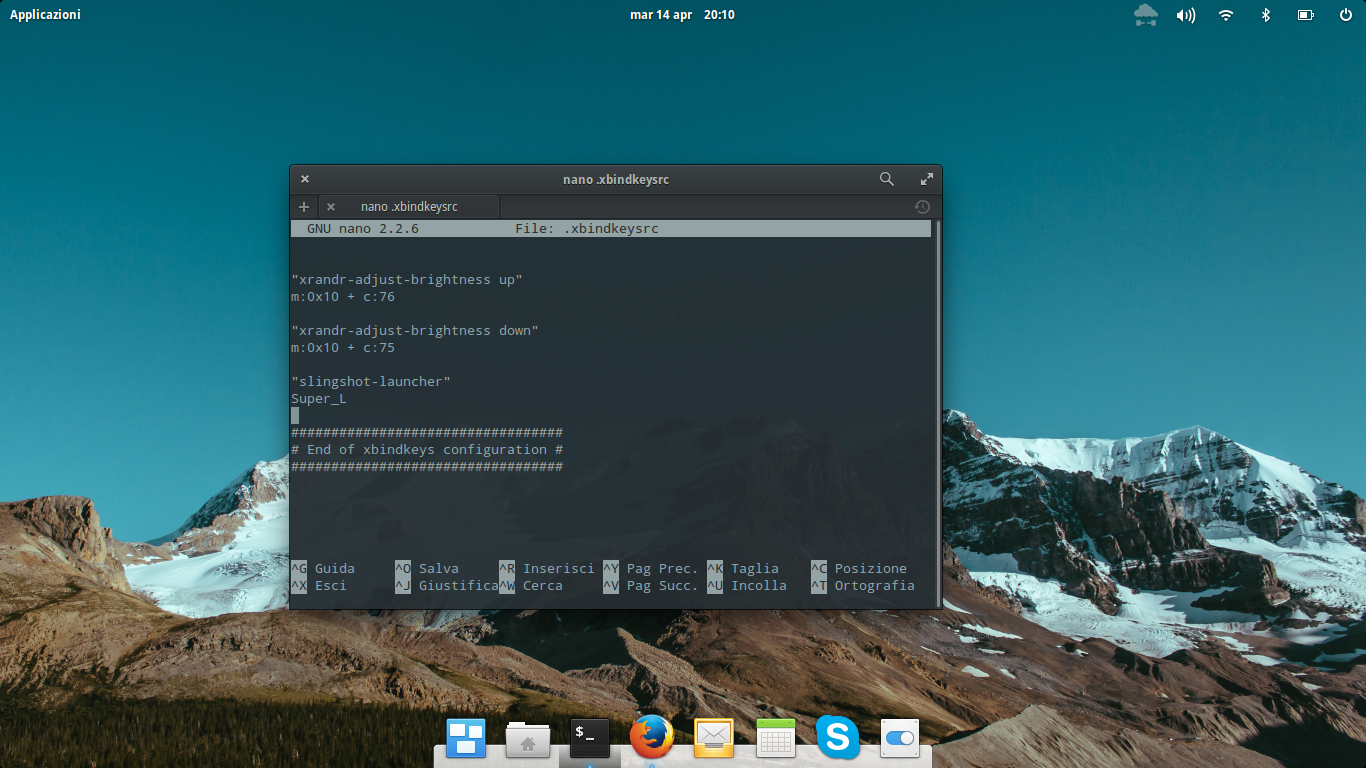
      <td>elementary OS 0.3 Freya is finally <a href="http://blog.elementary.io/post/116134677986/freya-is-here">out</a>! After I tried Luna on my netbook a couple of years ago, I felt in love with this sleek, light-weight Ubuntu-based distro that really puts effort in delivering a visual stunning experience. Since my beloved netbook is in Italy, I decided to install and configure eOS on my regular notebook, to take a deeper look; as you can already find plenty of reviews on internet, I’ll sum it up saying that this release of elementary OS is, once again, beautiful and the visuals are pixel-precised polished. The aim of the project has always been to deliver a minimal and easy-to-use experience (addressing expecially to Mac OS users), but here the devs may have gone too far. Surprisingly, in fact, there’s no way to add custom keyboard shortcuts or activate the application launcher using the Super key (but you have to use the <code class="language-plaintext highlighter-rouge">Super+Spacebar</code> or <code class="language-plaintext highlighter-rouge">Alt+F2</code> combinations). If that may sound like a minor issue, it turned to be quite a big deal, as I got accustomed to it through the different DEs I’ve been using recently. After a couple of hours spent digging into <a href="http://www.reddit.com/r/elementaryos/comments/2f73td/keybindings_shortcuts_in_freya/">dconf and gconf keys</a>, I tried a different approach that turned to be useful also to fix a nasty bug Linux distros have with brightness adjustment on my Timeline 5810T (but I’ll write about it in another post). We only need <code class="language-plaintext highlighter-rouge">xbindkeys</code>, a simple yet powerful command line tool to bind commands to a certain key or keys combinations. The program can be installed via terminal typing: <code class="language-plaintext highlighter-rouge">$ sudo apt-get install xbindkeys</code> After the installation, if you try to run the application, you will be warmed to create a configuration file. As user, type: <code class="language-plaintext highlighter-rouge">$ touch ~/.xbindkeysrc</code> or, alternatively: <code class="language-plaintext highlighter-rouge">$ xbindkeys --defaults &gt; ~/.xbindkeysrc</code> Then edit the file: <code class="language-plaintext highlighter-rouge">$ nano ~/.xbindkeysrc</code> And type, before the end section: <code class="language-plaintext highlighter-rouge">"slingshot-launcher" Super_L</code> so it will look like this: <a href="/assets/posts/2015/04/keybindings-and-super-to-start-the-menu-in-elementary-os-0-3-freya-schermata-del-2015-04-14-201005.png"><img src="/assets/posts/2015/04/keybindings-and-super-to-start-the-menu-in-elementary-os-0-3-freya-schermata-del-2015-04-14-201005.png" alt="xbindkeys" /></a> Then press <code class="language-plaintext highlighter-rouge">CTRL+X</code> to save and exit. Of course, xbindkeys can be used to bind also different commands to different keys. The values are written as: <code class="language-plaintext highlighter-rouge">"command" state (0x8) and keycode (32) keysyms associated with the given keycodes</code> To find the last two values (which, as we’ve seen, can be used indifferently), type <code class="language-plaintext highlighter-rouge">$ xbindkeys -k</code> then, in the blank window that’ll be open, type the key or the desired keys combination. The result will appear in the terminal. <a href="https://wiki.archlinux.org/index.php/Xbindkeys#Configuration">Source</a></td>
      <td><a href="http://www.unixstickers.com/stickers/linux-keyboard-stickers/elementary-os-square-keybaord-stickers-cover-windows-flag">Cover image courtesy of</a></td>
    </tr>
  </tbody>
</table>]]></content><author><name>fravaccaro</name></author><category term="elementary OS" /><category term="Freya" /><category term="keybindings" /><category term="Linux" /><category term="xbindkeys" /><summary type="html"><![CDATA[elementary OS 0.3 Freya is finally out! After I tried Luna on my netbook a couple of years ago, I felt in love with this sleek, light-weight Ubuntu-based distro that really puts effort in delivering a visual stunning experience. Since my beloved netbook is in Italy, I decided to install and configure eOS on my regular notebook, to take a deeper look; as you can already find plenty of reviews on internet, I’ll sum it up saying that this release of elementary OS is, once again, beautiful and the visuals are pixel-precised polished. The aim of the project has always been to deliver a minimal and easy-to-use experience (addressing expecially to Mac OS users), but here the devs may have gone too far. Surprisingly, in fact, there’s no way to add custom keyboard shortcuts or activate the application launcher using the Super key (but you have to use the Super+Spacebar or Alt+F2 combinations). If that may sound like a minor issue, it turned to be quite a big deal, as I got accustomed to it through the different DEs I’ve been using recently. After a couple of hours spent digging into dconf and gconf keys, I tried a different approach that turned to be useful also to fix a nasty bug Linux distros have with brightness adjustment on my Timeline 5810T (but I’ll write about it in another post). We only need xbindkeys, a simple yet powerful command line tool to bind commands to a certain key or keys combinations. The program can be installed via terminal typing: $ sudo apt-get install xbindkeys After the installation, if you try to run the application, you will be warmed to create a configuration file. As user, type: $ touch ~/.xbindkeysrc or, alternatively: $ xbindkeys --defaults &gt; ~/.xbindkeysrc Then edit the file: $ nano ~/.xbindkeysrc And type, before the end section: "slingshot-launcher" Super_L so it will look like this: Then press CTRL+X to save and exit. Of course, xbindkeys can be used to bind also different commands to different keys. The values are written as: "command" state (0x8) and keycode (32) keysyms associated with the given keycodes To find the last two values (which, as we’ve seen, can be used indifferently), type $ xbindkeys -k then, in the blank window that’ll be open, type the key or the desired keys combination. The result will appear in the terminal. Source Cover image courtesy of]]></summary></entry><entry><title type="html">Jolla Communicator: An Easy Way to Communicate between Ubuntu Desktop, Fedora, Arch &amp;amp; Sailfish OS</title><link href="https://fravaccaro.com/jolla-communicator-an-easy-way-to-communicate-between-ubuntu-desktop-fedora-arch-sailfish-os" rel="alternate" type="text/html" title="Jolla Communicator: An Easy Way to Communicate between Ubuntu Desktop, Fedora, Arch &amp;amp; Sailfish OS" /><published>2015-04-07T20:11:49+00:00</published><updated>2015-04-07T20:11:49+00:00</updated><id>https://fravaccaro.com/jolla-communicator-an-easy-way-to-communicate-between-ubuntu-desktop-fedora-arch-sailfish-os</id><content type="html" xml:base="https://fravaccaro.com/jolla-communicator-an-easy-way-to-communicate-between-ubuntu-desktop-fedora-arch-sailfish-os"><![CDATA[<p>Nowadays, everything spins around ecosystems: Apple, Microsoft and Google are continuously tightening their products’ experience to make the life or their users easier (and well, try to bound them to their services, but this is another story). What if we use GNU/Linux? We’ve been trough hard times, poor support and so on. But now now things are a-changing. Yes, because Jolla and their Sailfish OS are the new big guys in the city and with the growing interested of the FLOSS community, we may be at the beginning of a new, community-driven ecosystem. After <a href="https://openrepos.net/content/robertme/kodimote">KODI</a> and <a href="https://openrepos.net/content/mariusmssj/vlc-remote">VLC</a> controllers, <a href="https://openrepos.net/content/mkiol/send-phone">URLs and text forwarders</a> and <a href="https://openrepos.net/content/beidl/owncloud-photo-backup-daemon">picture uploaders</a>, another block has been added: <a href="http://www.messaggiero.it/blogpost.php?id_images=8">Jolla Communicator</a>. <a href="https://fravaccaro.wordpress.com/2015/04/07/jolla-communicator-an-easy-way-to-communicate-between-ubuntu-desktop-fedora-arch-sailfish-os/schermata-del-2015-04-01-17_10_12/#main"><img src="/assets/posts/2015/04/jolla-communicator-an-easy-way-to-communicate-between-ubuntu-desktop-fedora-arch-sailfish-os-schermata-del-2015-04-01-17" alt="Jolla Communicator" /></a> Unlike <a href="http://talk.maemo.org/showthread.php?p=1433854#post1433854">similar solutions</a>, it doesn’t require any app to be installed on the phone, but it’s a PC client (compatible with Ubuntu 14.04 and higher) that lets you read and write messages on the phone. These are the features included so far:</p>

<ul>
  <li>Connection via USB.</li>
  <li>Connection via WLAN.</li>
  <li>Reading messages on the Jolla phone.</li>
  <li>Picking a contact and send them a message.</li>
</ul>

<p>The configuration is pretty straightforward:</p>
<ol>
  <li>If you want to connect your phone to the computer via WiFi, make sure they are connected to the same network.</li>
  <li>Enable <code class="language-plaintext highlighter-rouge">Developer mode</code> on your phone via <code class="language-plaintext highlighter-rouge">Settings &gt; Developer mode</code>.</li>
  <li>On the same page, enable <code class="language-plaintext highlighter-rouge">Remote connection</code> and set a password.</li>
  <li>If you want to connect your phone and the computer via WiFi, take note of the WLAN IP address.</li>
  <li>If you want to connect your phone and the computer via USB, take note of the USB IP address, then connect your phone to the computer and select <code class="language-plaintext highlighter-rouge">Developer mode</code> in the pop up on your Jolla.</li>
  <li>Download the <code class="language-plaintext highlighter-rouge">.deb</code> package from <a href="http://www.messaggiero.it/blogpost.php?id_images=8">this page</a> and install it on your Ubuntu-based distro.</li>
  <li>Open the application and insert the IP address, the remote connection password and select your country code.</li>
  <li>Once you saved your settings, start the connection by clicking the button in the toolbar.</li>
</ol>

<p>You’ve done! To read and delete your messages use the <code class="language-plaintext highlighter-rouge">SMS</code> tab, to write a new one pick a contact from the <code class="language-plaintext highlighter-rouge">Contacts</code> tab.</p>

<h3 id="update">Update</h3>

<table>
  <tbody>
    <tr>
      <td>The developer has just released the Fedora-compatible package. You can download it from <a href="http://www.messaggiero.it/blogpost.php?id_images=8">here</a>. <code class="language-plaintext highlighter-rouge">libssh</code> may be needed, install it via <code class="language-plaintext highlighter-rouge">yum install libssh</code> The application has been ported to Arch Linux as well and it’s downloadable from the <a href="https://aur.archlinux.org/packages/jollacommunicator/">AUR repository</a>. <a href="">Source</a> <a href="http://jollacommunity.it/leggere-ed-inviare-messaggi-dal-proprio-pc-ubuntu/">Source</a></td>
      <td><a href="http://www.jollausers.com/2015/04/jolla-communicator-an-easy-way-to-communicate-between-ubuntu-desktop-sailfish-os/">Appeared on JollaUsers</a></td>
    </tr>
  </tbody>
</table>]]></content><author><name>fravaccaro</name></author><category term="Arch" /><category term="Fedora" /><category term="Jolla Communicator" /><category term="Sailfish OS" /><category term="Ubuntu" /><summary type="html"><![CDATA[Nowadays, everything spins around ecosystems: Apple, Microsoft and Google are continuously tightening their products’ experience to make the life or their users easier (and well, try to bound them to their services, but this is another story). What if we use GNU/Linux? We’ve been trough hard times, poor support and so on. But now now things are a-changing. Yes, because Jolla and their Sailfish OS are the new big guys in the city and with the growing interested of the FLOSS community, we may be at the beginning of a new, community-driven ecosystem. After KODI and VLC controllers, URLs and text forwarders and picture uploaders, another block has been added: Jolla Communicator. Unlike similar solutions, it doesn’t require any app to be installed on the phone, but it’s a PC client (compatible with Ubuntu 14.04 and higher) that lets you read and write messages on the phone. These are the features included so far:]]></summary></entry><entry><title type="html">Connect Jolla to Android via SSH or SFTP</title><link href="https://fravaccaro.com/connect-jolla-to-android-via-ssh-or-sftp" rel="alternate" type="text/html" title="Connect Jolla to Android via SSH or SFTP" /><published>2014-09-22T20:53:20+00:00</published><updated>2014-09-22T20:53:20+00:00</updated><id>https://fravaccaro.com/connect-jolla-to-android-via-ssh-or-sftp</id><content type="html" xml:base="https://fravaccaro.com/connect-jolla-to-android-via-ssh-or-sftp"><![CDATA[<p>I recently switched my Manjaro-powered netbook with a Nexus 7 as a “in-mobility” device and I started to dig a bit to find alternatives to those tasks I easily did with Manjaro, like connecting my Jolla via SSH or via SFTP. I used these apps on CyanogenMod 11, but I guess they will work even on other devices and different flavours of Android. Remember that you can find the IP address of your Jolla in <code class="language-plaintext highlighter-rouge">Settings &gt; System &gt; Developer mode</code>.</p>

<h2 id="ssh">SSH</h2>

<p>Here you have two options, a FOSS one and a freemium app. The first one is <a href="https://f-droid.org/repository/browse/?fdfilter=ssh&amp;fdid=org.connectbot">ConnectBot</a>, available on <a href="https://f-droid.org/">F-Droid</a> (the build on the Play Store in out of date - and F-Droid is a great FOSS alternative marketplace, by the way), which has pretty basic features and graphics, but it gets the job done and I have no hitches in connecting my Jolla. If you are looking for a more complex and full-featured app, go for <a href="https://play.google.com/store/apps/details?id=com.sonelli.juicessh">JuiceSSH</a>, available on the Play Store.</p>

<h2 id="sftp">SFTP</h2>

<p>The best way to browse your files on Jolla without the hassle to have an USB cable. All you need to do is download <a href="https://play.google.com/store/apps/details?id=com.ghisler.android.TotalCommander">Total Commander</a> and its <a href="https://play.google.com/store/apps/details?id=com.ghisler.tcplugins.SFTP">SFTP plugin</a> (not the most original name, I know) from the Play Store. Then open Total Commander and select <code class="language-plaintext highlighter-rouge">SFTP &gt; &lt;New connection...&gt;</code>. Assign a name to your connection and set the IP address, username (<code class="language-plaintext highlighter-rouge">nemo</code> by default) and the password of your Jolla. After this, you will be able to browse your Sailfish OS-powered device and copy/move directories and files from the two-paned file manager. Remember to close the connection from the toolbar below when you have done. Do you use other ways/apps to connect your Jolla to your Android, iOS, Windows Phone, Blackberry device? Let me know leaving a comment below.</p>]]></content><author><name>fravaccaro</name></author><category term="Android" /><category term="ConnectBot" /><category term="guide" /><category term="Jolla" /><category term="JuiceSSH" /><category term="Sailfish OS" /><category term="SFTP" /><category term="SSH" /><category term="Total Commander" /><summary type="html"><![CDATA[I recently switched my Manjaro-powered netbook with a Nexus 7 as a “in-mobility” device and I started to dig a bit to find alternatives to those tasks I easily did with Manjaro, like connecting my Jolla via SSH or via SFTP. I used these apps on CyanogenMod 11, but I guess they will work even on other devices and different flavours of Android. Remember that you can find the IP address of your Jolla in Settings &gt; System &gt; Developer mode.]]></summary></entry><entry><title type="html">Disable Android environment in Jolla at startup</title><link href="https://fravaccaro.com/disable-android-environment-in-jolla-at-startup" rel="alternate" type="text/html" title="Disable Android environment in Jolla at startup" /><published>2014-08-14T10:56:39+00:00</published><updated>2014-08-14T10:56:39+00:00</updated><id>https://fravaccaro.com/disable-android-environment-in-jolla-at-startup</id><content type="html" xml:base="https://fravaccaro.com/disable-android-environment-in-jolla-at-startup"><![CDATA[<p>I realized the first think I do as I bootup my Jolla is stopping the Alien Dalvik. Having it on Sailfish is handy (and it really comes in help when you can’t find the needed apps on Store/Warehouse), but it slow down my phone at start (to check the various notifications), so I looked for something to disable it. First, make sure you have nano installed on your Jolla. If it isn’t there, install it with: <code class="language-plaintext highlighter-rouge">pkcon install nano</code></p>

<h3 id="complete-disabling-prevent-android-apps-to-start">Complete disabling (prevent Android apps to start)</h3>

<p><code class="language-plaintext highlighter-rouge">devel-su &lt;password&gt; systemctl stop aliendalvik.service systemctl mask aliendalvik.service</code> To re-enable it: <code class="language-plaintext highlighter-rouge"># systemctl unmask aliendalvik.service # systemctl start aliendalvik.service</code></p>

<h3 id="disabling-the-alien-dalvik-at-startup-it-will-start-when-you-want-to">Disabling the Alien Dalvik at startup (it will start when you want to)</h3>

<p>From the terminal: <code class="language-plaintext highlighter-rouge">devel-su &lt;password&gt; nano /etc/systemd/system/nodroidavvio.service</code> In nano paste: ` [Unit] After=aliendalvik.service Description=No Android al riavvio<code class="language-plaintext highlighter-rouge"> </code>[Service] Type=oneshot RemainAfterExit=no ExecStart=/bin/systemctl stop aliendalvik.service<code class="language-plaintext highlighter-rouge"> </code>[Install] WantedBy=multi-user.target<code class="language-plaintext highlighter-rouge"> Close and save by pressing </code>CTRL+X<code class="language-plaintext highlighter-rouge"> and within the terminal prompt: </code># systemctl enable nodroidavvio.service<code class="language-plaintext highlighter-rouge"> To re-enable the Alien Dalvik at startup: </code># systemctl disable nodroidavvio.service`</p>

<p><em>thanks to<a href="http://twitter.com/iliveinpublic">@iliveinpublic</a> and <a href="http://twitter.com/eugenio_g7">@eugenio_g7</a> for the tips.</em></p>]]></content><author><name>fravaccaro</name></author><category term="Alien Dalvik" /><category term="Android" /><category term="disable" /><category term="environment" /><category term="guide" /><category term="Jolla" /><category term="Sailfish OS" /><category term="startup" /><summary type="html"><![CDATA[I realized the first think I do as I bootup my Jolla is stopping the Alien Dalvik. Having it on Sailfish is handy (and it really comes in help when you can’t find the needed apps on Store/Warehouse), but it slow down my phone at start (to check the various notifications), so I looked for something to disable it. First, make sure you have nano installed on your Jolla. If it isn’t there, install it with: pkcon install nano]]></summary></entry></feed>