Keybindings and SUPER to start the menu in elementary OS 0.3 Freya
elementary OS 0.3 Freya is finally out! After I tried Luna on my netbook a couple of years ago, I felt in love with this sleek, light-weight Ubuntu-based distro that really puts effort in delivering a visual stunning experience. Since my beloved netbook is in Italy, I decided to install and configure eOS on my regular notebook, to take a deeper look; as you can already find plenty of reviews on internet, I’ll sum it up saying that this release of elementary OS is, once again, beautiful and the visuals are pixel-precised polished. The aim of the project has always been to deliver a minimal and easy-to-use experience (addressing expecially to Mac OS users), but here the devs may have gone too far. Surprisingly, in fact, there’s no way to add custom keyboard shortcuts or activate the application launcher using the Super key (but you have to use the Super+Spacebar or Alt+F2 combinations). If that may sound like a minor issue, it turned to be quite a big deal, as I got accustomed to it through the different DEs I’ve been using recently. After a couple of hours spent digging into dconf and gconf keys, I tried a different approach that turned to be useful also to fix a nasty bug Linux distros have with brightness adjustment on my Timeline 5810T (but I’ll write about it in another post). We only need xbindkeys, a simple yet powerful command line tool to bind commands to a certain key or keys combinations. The program can be installed via terminal typing: $ sudo apt-get install xbindkeys After the installation, if you try to run the application, you will be warmed to create a configuration file. As user, type: $ touch ~/.xbindkeysrc or, alternatively: $ xbindkeys --defaults > ~/.xbindkeysrc Then edit the file: $ nano ~/.xbindkeysrc And type, before the end section: "slingshot-launcher" Super_L so it will look like this: 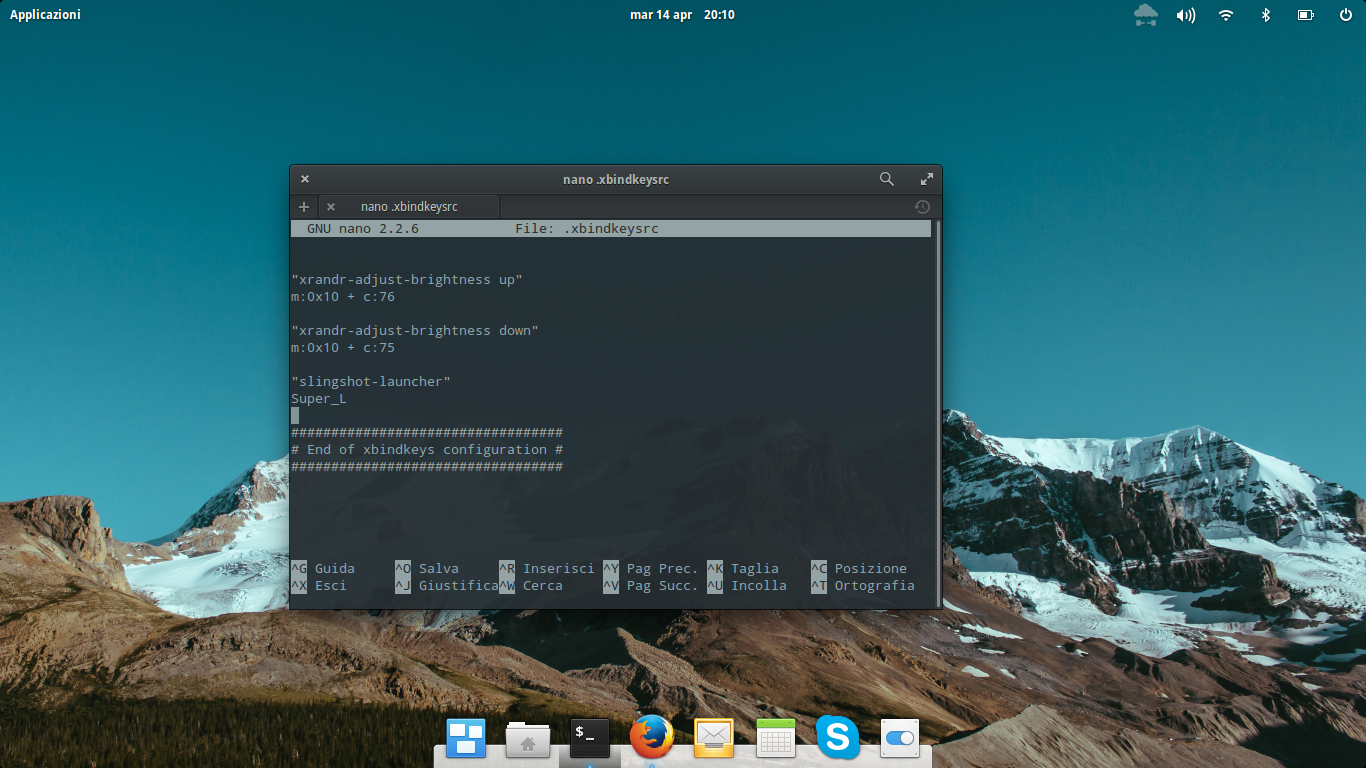 Then press Then press CTRL+X to save and exit. Of course, xbindkeys can be used to bind also different commands to different keys. The values are written as: "command" state (0x8) and keycode (32) keysyms associated with the given keycodes To find the last two values (which, as we’ve seen, can be used indifferently), type $ xbindkeys -k then, in the blank window that’ll be open, type the key or the desired keys combination. The result will appear in the terminal. Source |
Cover image courtesy of |
© 2026 fravaccaro
•
Theme Moonwalk